
Register a new device
A device that is powered on and connected still collects nothing until it is registered. This takes about two minutes.
Before you start
Section titled “Before you start”- The device is powered on and on the same network as your other devices
- You know which line or unit it sits on
- Your account can manage devices
1. Open Devices
Section titled “1. Open Devices”From the sidebar, choose Devices under Management.
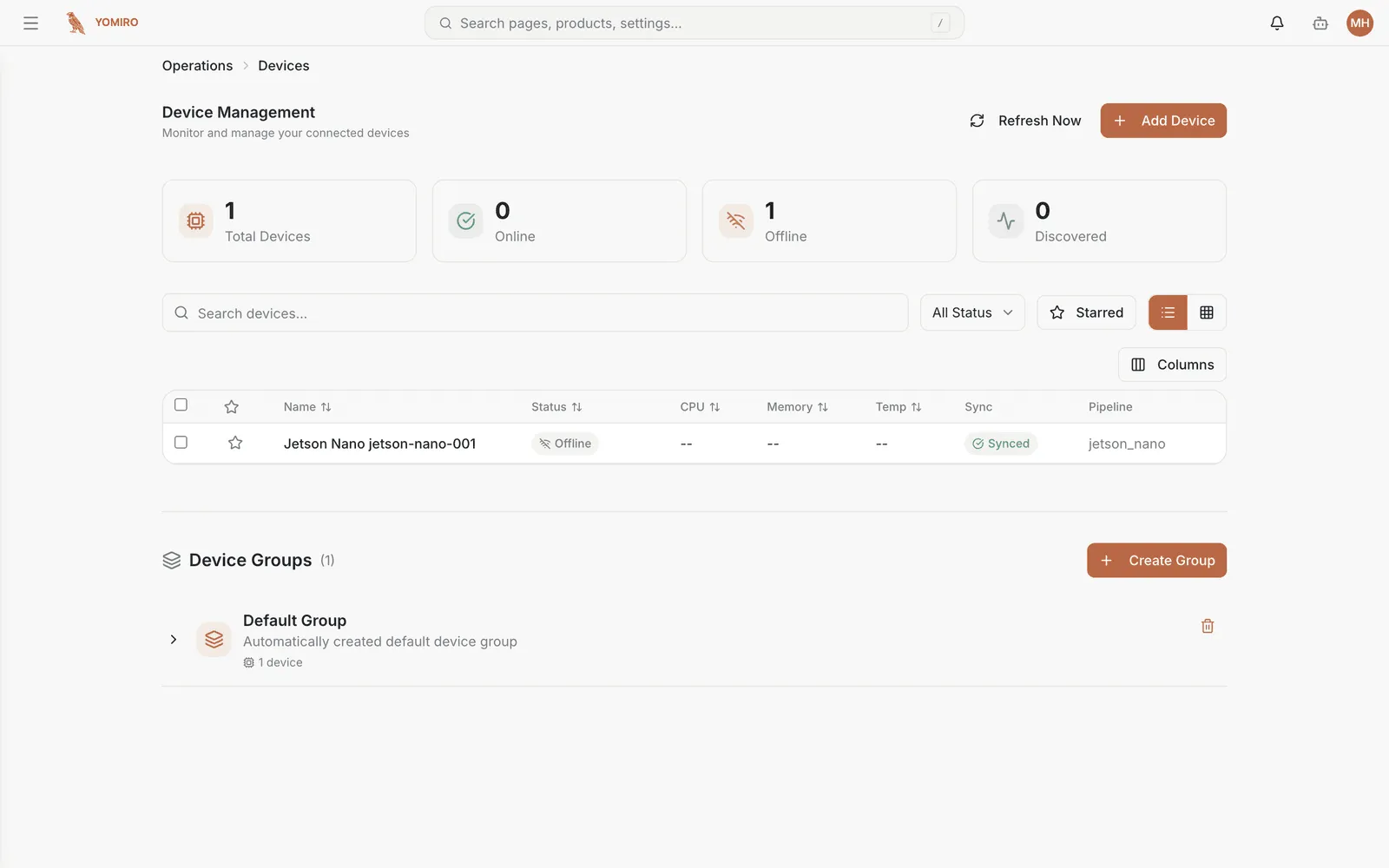
The four cards across the top are your fleet at a glance. Look at Discovered — that count is devices that have announced themselves but are not registered yet. A number there is a to-do, not a status.
2. Add the device
Section titled “2. Add the device”Select Add Device in the top right.
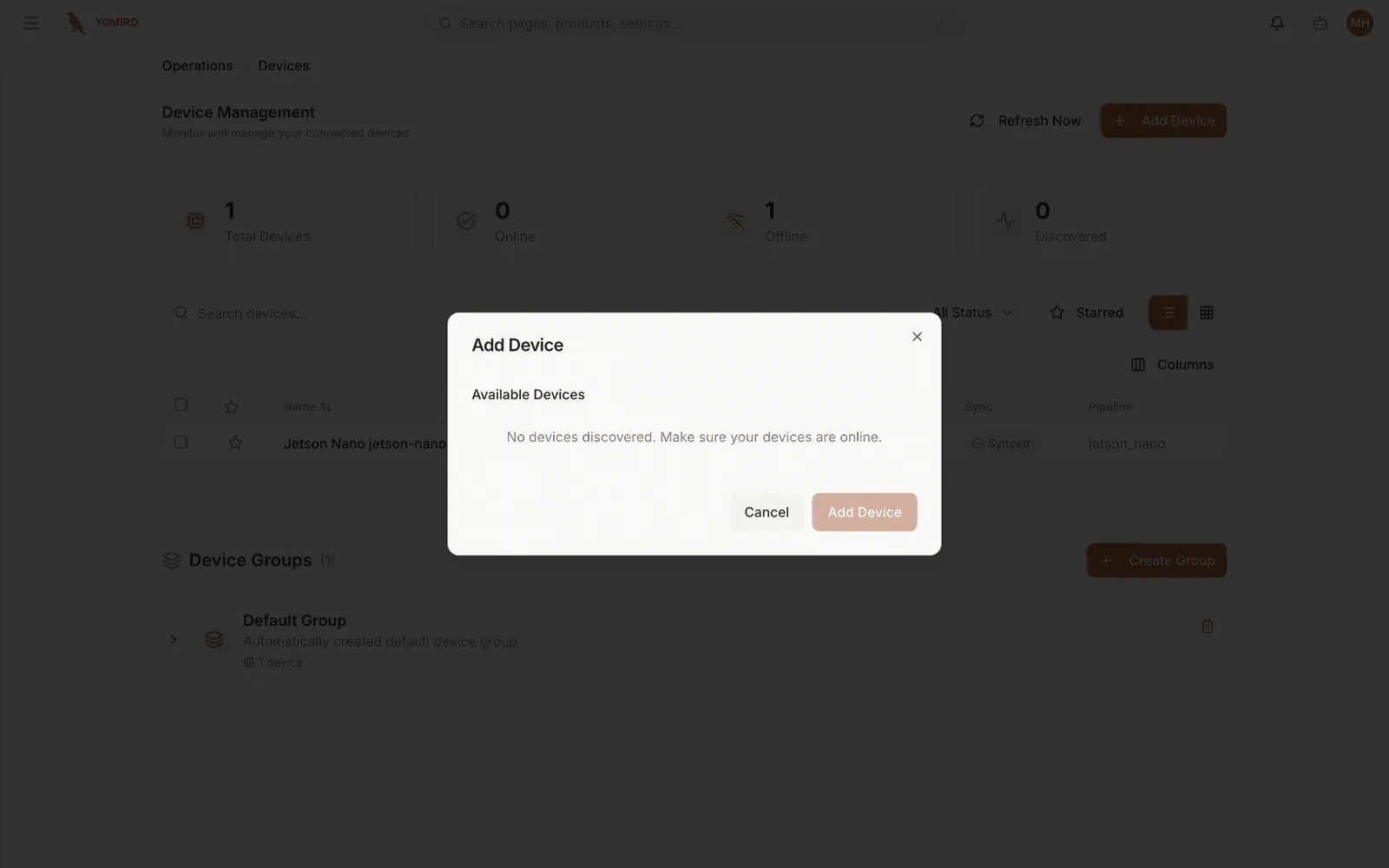
The dialog lists what has been discovered on the network. Pick your device and confirm.
3. Put it in a device group
Section titled “3. Put it in a device group”Scroll to Device Groups and either add the device to an existing group or select Create Group.
This step matters more than it looks. Detection settings attach to a group, not to a device. A group is normally one line’s worth of cameras, so setting a threshold once applies to every camera on that line. Get this right early — it is the unit everything else is configured against.
4. Check it is reporting
Section titled “4. Check it is reporting”Back in the device list, the device should move to Online within a minute or so and start showing CPU, memory and temperature.
-- in those columns means no telemetry has arrived yet. On a device you just
registered that is normal for the first cycle. If it persists, the device is
registered but not actually publishing.
Next steps
Section titled “Next steps”- Set up defect detection for the group you just put it in
- Assign it to a location so it appears in plant-level reporting
- Devices reference for everything else on this page