
Captures
Captures is where you watch what the cameras see, decide what is worth keeping, and tune what the AI looks for. Seven tabs, one device group at a time.
Picking your scope
Section titled “Picking your scope”Every tab works within a device group, chosen from the selector in the page header. Remember that configuration attaches to the group, not to one camera — see device groups.
The two tabs that show a viewer — Live and Cameras — get a second picker for the individual device. It only lists devices that are currently active in the chosen group. The other tabs don’t show it, because it would mean nothing there.
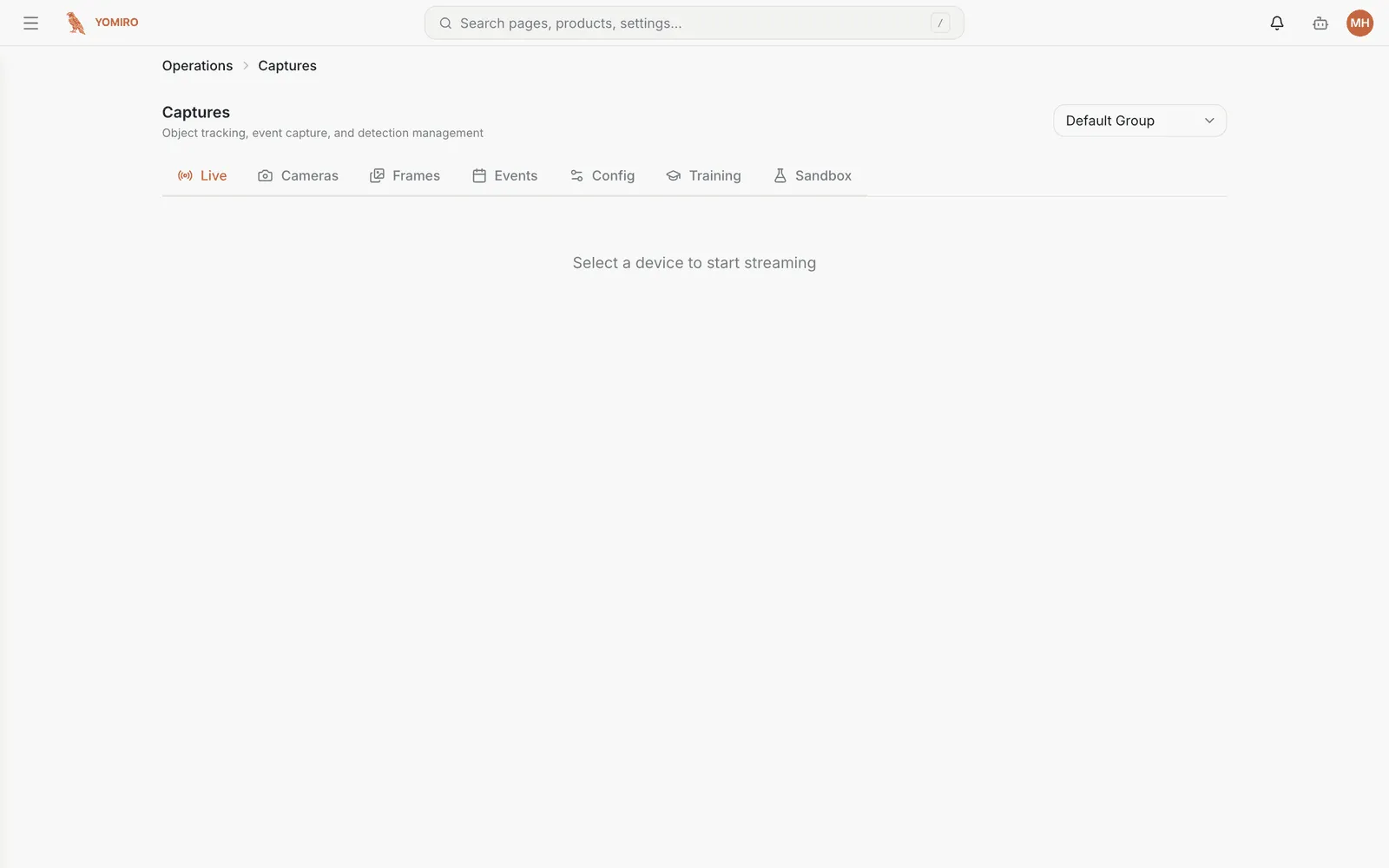
A low-latency WebRTC stream straight from the device to your browser.
Pick a group, pick a device, and the feed starts. When AI inference is enabled for that group, detection boxes are drawn over the video as they happen. The connection is peer-to-peer — the video does not route through the platform, only the signalling does.
Cameras
Section titled “Cameras”One device often runs several cameras. This tab lists the roster for the selected device and streams whichever one you pick, so you can confirm coverage without clicking between devices.
Each camera shows whether it is enabled in the device’s configuration and whether the device is actually publishing it — two different things, and the distinction is what tells you whether a blank feed is a config problem or a device problem. Cameras that support it get pan/tilt/zoom controls over the video, and you can grab a still frame from the live feed.
Changing which cameras a device runs, and which one inference runs against, is done from the Devices page, not here.
Frames
Section titled “Frames”A grid of the still frames the system has saved. This is your evidence trail — what actually got captured, rather than what was streaming.
Annotating a capture
Section titled “Annotating a capture”Opening a frame gives you the annotation editor, where you can draw regions, apply labels, and correct what the model got wrong. Corrections here are what later feed Training.
Events
Section titled “Events”The default tab. A chronological list of detection events for the group — what was detected, when, and by which device.
Events are produced by the rules configured in Config; if this list is emptier than you expect, that is usually the place to look.
Config
Section titled “Config”Where you define what the AI is looking for, for this device group. Changes publish to the devices immediately — no restart, no maintenance window.
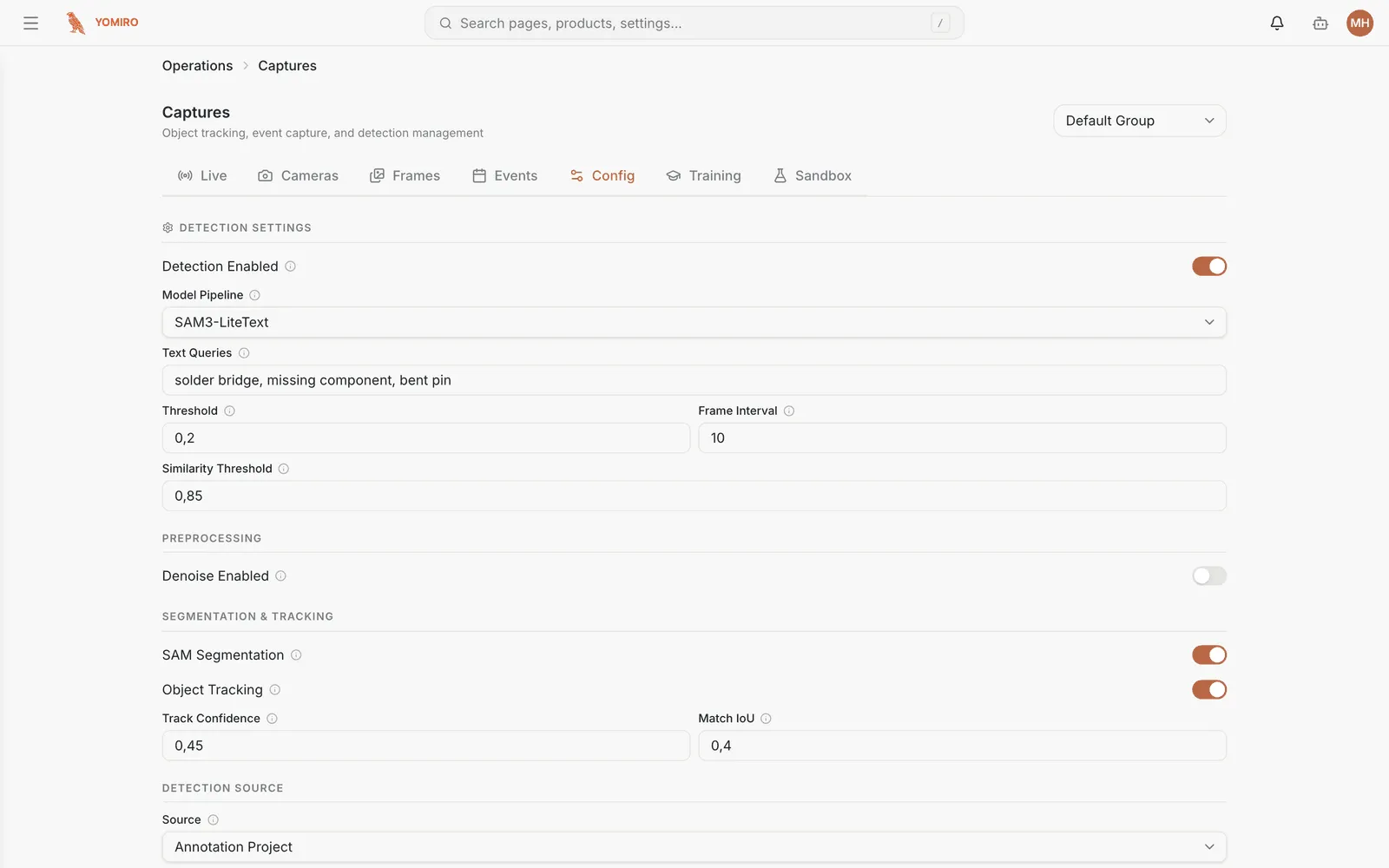
Detection settings
| Setting | Effect |
|---|---|
| Detection Enabled | Master switch for inference on the group |
| Model Pipeline | Which model runs, e.g. SAM3-LiteText |
| Text Queries | Comma-separated descriptions of what to detect — no training required |
| Threshold | Confidence floor. Raise it for fewer, surer detections |
| Frame Interval | Run detection every N frames. Raise it to cut device load |
| Similarity Threshold | How alike two detections must be to count as the same thing |
Preprocessing, segmentation and tracking
| Setting | Effect |
|---|---|
| Denoise Enabled | Clean up grainy feeds before inference |
| SAM Segmentation | Produce pixel masks rather than just boxes |
| Object Tracking | Follow objects across frames, so one object counts once |
| Track Confidence / Match IoU | How readily a detection is matched to an existing track |
Detection source selects what the group detects against — text queries, or an annotation project built in Training.
Text queries are the unusual one: you describe the thing in words and the model finds it, rather than collecting examples and training a detector. See Set up defect detection for the walkthrough.
Training
Section titled “Training”For when prompts alone are not precise enough, and you want a labelled dataset.
Work is organised into projects, each with its own version. A project moves through four stages, which are also its four sub-pages:
| Stage | What you do |
|---|---|
| Labels | Define the label set |
| Media | Add the images and video to work through |
| Annotate | Label them, one item at a time |
| Deploy | Push the finished set out |
Sandbox
Section titled “Sandbox”Try settings against a recorded video before committing them to a live line.
Upload a video, set the processing options — queries, threshold, frame interval, SAM segmentation, tracking, denoise, similarity — and run it. Results land in a processing history you can compare across runs.
This is the safe place to answer “would raising the threshold have missed that defect?” without touching production.
Related
Section titled “Related”- Inspection — for reference-based defect detection rather than open-ended tracking
- Alerts — to be told about events instead of watching for them
- Monitoring — to see detection volume as a trend